
When you first log into Profiled, you’ll be greeted with the Dashboard view…
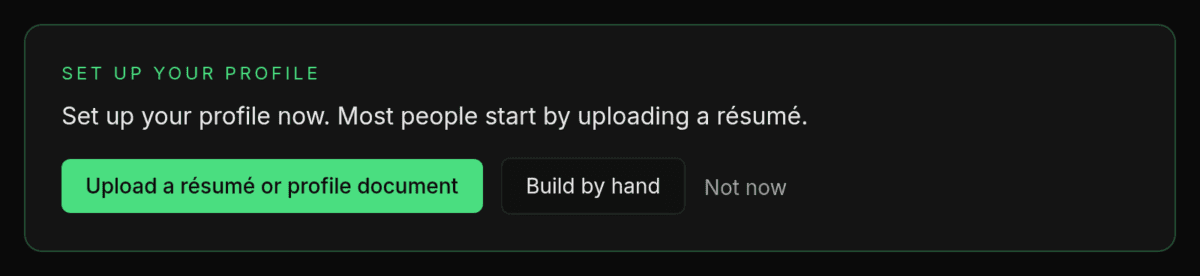
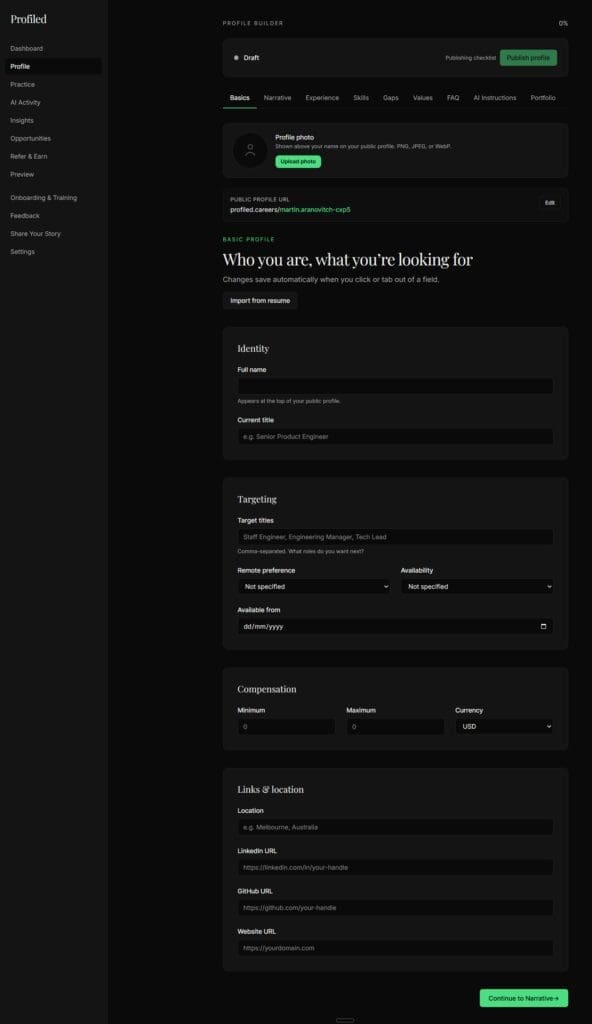
You can start by uploading your résumé from the Profile Setup panel on your dashboard, or click on the menu’s ‘Profile’ section and begin with the ‘Basics’ tab: enter your name, title, and what you’re looking for. On the Profile page, “Fill it with help” can then ask you for what publishing still needs.
The Profile Setup panel tells you the same thing while your profile is empty, and its step changes as your profile fills in. Expect around 30–45 minutes for a first working profile, split across as many sittings as you like.
Detail
What is on the dashboard. Five things worth knowing before you start:
- The welcome header shows your name and your profile status. On a new account that status is Draft. Nothing is public until you publish.
- The Profile Setup panel shows the one step to take next, starting with “Upload a résumé or profile document” or “Build by hand”. “Not now” folds it into a one-line bar on this browser, and “Set up your profile” opens it again. Profile Setup: the dashboard panel that gets you to publish covers every step.
- The profile completeness card shows your quality score.
- Messages from recruiters is your inbox. It stays empty until your profile is published, because that is when recruiters can reach you. Recruiter accounts are not open during the beta.
- On Free, an upgrade card for Pro. You can ignore it. Uploading a résumé, building by hand, getting publish-ready with the profile assistant and publishing all work on Free.
The sidebar can show up to 17 items. The count varies by plan, by which features are switched on for your account, and by your progress. The main group holds Dashboard, Profile Setup (until your first publish), Profile (the builder, where most of the work happens), Practice, Check a Job Fit, AI Activity, Insights, Opportunities, Inbox (once a recruiter has messaged you), Refer & Earn, Gift Pro and Preview. A second group below it holds Onboarding & Training, Get Help, Feedback, Share Your Story and Settings.
Your User Dashboard at a glance: the menu, tiers, flags and banners has the full menu table and explains why your menu may show fewer items.
One note on Preview: while your profile is a draft, it opens a private draft preview inside the dashboard that only you can see. Your public page does not exist until you publish, so anyone who tries your public address before then gets a “not found” page. This is expected, it’s not a fault. Once your profile is published and public, the entry reads “View your profile” and opens your live page in a new tab.
Preview / View your profile: your profile as a visitor sees it covers both.
Your first move: Follow the Profile Setup panel. Upload your résumé to seed your experience and skills, and review what was read before you apply it, or open the Profile builder and fill in the Basics tab. Ordinary fields have no Save button; your profile URL and photo are the exceptions. Your work saves as you go, so you can stop whenever you want and come back later to continue building your profile.
The day-one order of work. Four screens, in this order:
- Dashboard. Follow the Profile Setup panel. “Upload a résumé or profile document” is the quickest start, or choose “Build by hand”.
- Profile. Work through the tabs, or use “Fill it with help” to be asked for what is missing. To publish you need five publishing requirements met, your name among them, and a score of at least 50. Why won’t the Publish button enable? lists the requirements.
- Preview. Before you publish, open your draft preview and read it as a stranger would. After you publish, open “View your profile” and put two hard questions to your own AI. Ask AI and the fit assessment on your profile page run only once it is published; to test yourself against a job before then, use “Check a Job Fit” in the sidebar.
- Settings. Confirm which plan your account is on.
💡Tip: After joining Profiled as a Free or Pro user, follow our step-by-step Quick-Start User Guide to learn how to set up your profile quickly and easily.
Related
- Should I import my résumé or build my profile by hand?
- How long until I can publish?
- What are the nine profile tabs, and do I have to fill them all?
Last verified: 2026-10-21