Your public half, and never anything marked private.
Visitors see your name, title, photo, availability badge, elevator pitch, company badges and social links, your public experience bullets, your Strong, Moderate and Gaps & Growth Areas skill columns, your FAQ, the fit assessment tool, and an "Ask AI About Me" chat. Recruiters see the same page; there is no separate recruiter view of your profile.
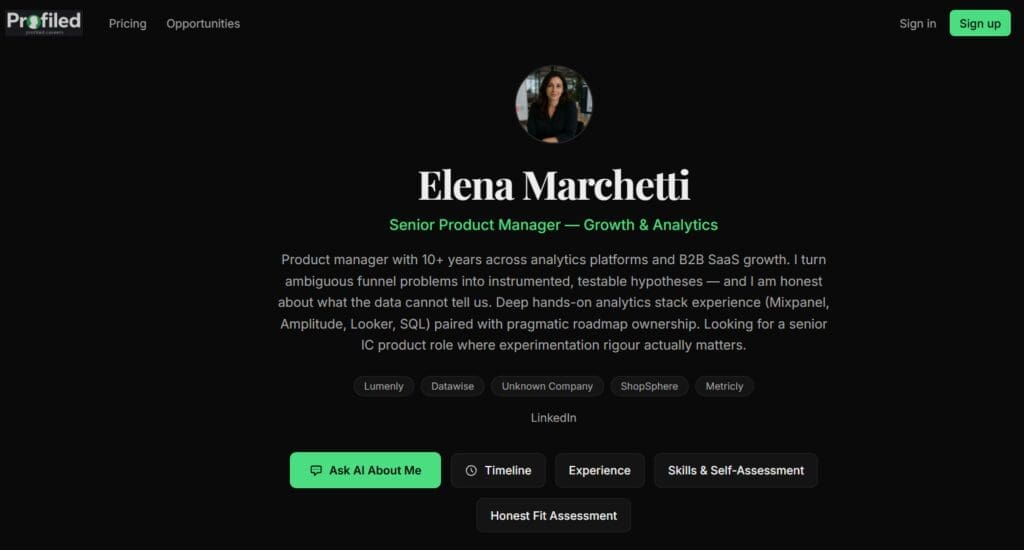
Visit these demo profile pages to see what your profile page will look like when completed and published:
There are three demo profiles. Each carries a "Demo" notice at the top, and the allowances for trying the AI tools on them are listed on the limits page.
Detail
A public profile has seven regions, from top to bottom. For each one, this page lists where the content comes from in the Profile Builder and what a visitor sees when you leave it empty. The general rule: an empty element is left out, and a section with nothing in it is not shown at all.
The hero
Name, title, photo, availability badge, elevator pitch, company badges, and your LinkedIn / GitHub / website links as chips.
| Element | Comes from | If it is empty |
|---|---|---|
| Status badge | "Availability" and "Remote preference" on Tab 1 — Basics, shown together, for example "Open to opportunities · Hybrid" | Only the one you set is shown. No badge if both are "Not specified" |
| Photo | The profile photo on Basics | No photo circle |
| Name | "Full name" on Basics | The heading reads "Anonymous" |
| Title | "Current title" on Basics | Left out |
| Elevator pitch | "Elevator pitch" on Tab 2 — Narrative | Left out |
| Company badges | One per company name across your roles on Tab 3 — Experience | No badges |
| Links | "LinkedIn URL", "GitHub URL" and "Website URL" on Basics, shown as "LinkedIn", "GitHub" and "Website" | Left out. A link that points to the same address as another is shown once |
Your full name is one of the publishing requirements (the "Your name" row of the Publishing checklist), so you cannot publish while it is blank. If you clear it after publishing, the page stays live and the heading reads "Anonymous". Your location is not printed on the page.
The buttons under the hero
The first button is always "Ask AI About Me". It opens the chat, which answers from your public content only.
When the full row of buttons is switched on by the Profiled team, these follow it. The row is switched on for all profiles at once, not per account, and it is on as of the date at the foot of this page.
| Button | What it does | Shown when |
|---|---|---|
| "Timeline" | Opens a panel listing your roles, most recent first, each with its start year and a one-line summary. Clicking a role jumps to it on the page | You have at least one role |
| "Experience" | Jumps to that section | You have at least one role |
| "Skills & Self-Assessment" | Jumps to that section | You have at least one skill |
| "Honest Fit Assessment" | Jumps to that section | Always |
| "FAQs" | Jumps to that section | You have at least one complete FAQ |
When the row is switched off, "Ask AI About Me" is the only button under the hero. The sections further down the page are not affected.
Experience
The public half of each role: company, title, title progression, dates and your accomplishment bullets.
Roles come from the Experience tab and appear in the order you arranged them there. Under the "Experience" heading, one line tells visitors: "The candidate keeps private notes on these roles that inform the Honest Fit Assessment below. They are never shown here and never given to the chat." That line appears once for the section, whether or not you have written private notes, and no role is marked individually.
| Element | Comes from | If it is empty |
|---|---|---|
| Title and company | "Job title" and "Company name" | A role without both is not shown anywhere on the page |
| Dates | Start and end dates, shown as month and year. A current role ends in "Present" | A role with no end date that is not marked "I currently work here" ends in "N/A" |
| "Progression:" line | "Title progression" | Left out |
| Bullets | "Key accomplishments" | Left out. The card shows only the title, company and dates |
With no complete roles, there is no "Experience" section, no "Timeline" button and no company badges.
Skills & Self-Assessment
Your skills from all three Skills-tab columns, plus your Gaps-tab entries.
The section has three columns: "Strong", "Moderate" and "Gaps & Growth Areas". Each skill from Tab 4 — Skills appears in the column you chose for it, with its name, its years of experience and its evidence. Years are left out when blank or zero, and evidence is left out when blank. The third column lists your skills marked "Still developing" first, then each entry from Tab 5 — Gaps: its description, the "Why it’s a gap" text, and an "Interested in learning" tag if you ticked that box.
An empty column reads "None listed". The whole section appears only when you have at least one skill, so entries on the Gaps tab alone do not make it show. A skill or gap card you added but never named is not shown.
Honest Fit Assessment
The fit assessment tool – where a hiring manager pastes a job description and gets an honest verdict with its reasoning.
This section is always on the page, however sparse your profile is, and there is nothing in it for you to fill in. It has a text box, an "Analyze Fit" button and a short line about the visitor’s allowance. A result opens with one of three verdicts, Strong fit, Worth a conversation or Probably not your person, followed by "Strengths", "Gaps", "Transferable Skills", "Recommendation" and "Confidence", and it carries the line "AI-generated assessment — decision support, not a decision. May contain mistakes."
The assessment draws on your public profile and your private context. It does not use your AI Instructions or your Portfolio. Your private notes are never shown to visitors or recruiters, nothing you wrote privately can be repeated back, and every finished assessment is checked for this. How does the fit assessment work, and what information does it see? has the detail. How many questions and assessments one visitor can run is listed on the limits page.
Frequently Asked Questions
The question-and-answer pairs you wrote.
They come from Tab 7 — FAQ and appear in the order you set there, under the line "Pre-answered by the candidate — or ask the AI for more depth." An FAQ missing its question or its answer is not shown. With no complete FAQs, the section and its button are left out.
The footer
A "Powered by Profiled" line, standard on every tier.
The footer repeats your links, then shows a "Build your own Profiled page" button, the "Powered by Profiled" line, your profile address, and links to the Privacy Policy, Terms of Service and AI Disclosure. The button is a plain link to the Profiled homepage. It carries no referral and credits nobody, so a visitor who signs up through it is not attributed to you. Can I Remove the "Powered by Profiled" Watermark? covers removing them.
What is never shown, and what is not shown yet
What is never shown: the eleven private Experience fields, the entire Values tab, and your private skill notes. The visitor chat is not merely told to keep them quiet; it is never given them at all. Your AI Instructions are different: they are not shown as part of your profile page, but the chat follows them and may mention them to visitors.
Not yet shown: portfolio items. They are not currently scored, are not rendered publicly, and are not read by the AI.
Your availability badge only appears if you set a status in the Basics tab, either "Availability" or "Remote preference". The builder does not prompt you for it, so a profile that says nothing about whether you are open to work is usually one where this was skipped.
Publishing also lists you in the recruiter directory, which is how recruiters find you in the first place, and you get an email with your public link. Recruiter accounts are not open during the beta, so the directory matters once they are.
If your profile is published but private
A profile can be published without being publicly visible. In that state a visitor who opens your address gets a "not found" page, the chat and the fit assessment do not run, and you are not listed in the recruiter directory. In your dashboard, the home screen says your profile is published "but set to private", and the sidebar entry reads "Preview" where a live profile shows "View your profile".
This is a state, not a setting. There is no control in your dashboard that puts a profile into it or takes it out. If you find your profile in this state and do not know why, contact support and we will explain what happened and what your options are.
To see all of this for your own profile before or after publishing, use Preview / View your profile: your profile as a visitor sees it.
Related
- Is My Private Context Ever Shown to Recruiters or Visitors?
- What does the AI chat on my public profile know about me?
- Can I unpublish my profile, and what happens when I do?
Last verified: 2026-10-21