What this screen is
Practice is the mock-interview room. You talk with an AI interviewer that plays the hiring side, then get a written debrief on your strengths, weaknesses and specific things to refine. You reach it from the "Practice" entry in the dashboard sidebar. Your User Dashboard at a glance: the menu, tiers, flags and banners lists every sidebar entry and who sees it.
The page is headed "Mock interviews with honest debriefs", and its intro says what it does: "Practise an interview stage or a 5-minute drill with an AI interviewer that reads your public profile, then get a structured debrief on your strengths, weaknesses, and specific things to refine." On Pro a second sentence follows: "Or start from one of your job fit checks to practise for that role, with a readiness read in the debrief."
There are three ways to practice: one interview stage, a short drill on one skill area, or a mock interview for a role you have checked. The interviewer reads the public fields of your profile, never your private notes. Practice writes nothing to your profile.
Practice is part of Pro, whether your Pro is paid, complimentary, or earned through Refer & Earn. The allowances differ; see the minutes section below.
Voice is optional for building your profile: you can type or import instead, and your profile isn’t disadvantaged if you never use voice. On a Pro account, the Profile Setup panel on your dashboard also offers "Talk it out (experimental)", which opens the voice interview. Practice itself is a voice interview and needs a microphone.
Under the heading, on every plan, and again on the start screen, a note reads: "Experimental. Practice interviews are new. The interviewer and the debrief are AI-generated, so treat the feedback as a rehearsal aid, not an assessment."
The Practice screen and your history
On Pro, a "Start practice interview" button sits top right, and the rest of the page is your history, "Past debriefs".
"Past debriefs" lists your practice sessions, newest first, up to the 50 most recent. Each row can show:
- The date and time
- Chips for how the session was set up: the interview stage (for example "Screening interview"), the difficulty ("Difficulty:") and the level of the role ("Level of the role:"). Older sessions, recorded before the start screen offered these choices, have none
- For a session started from a job fit check that has a debrief to show, a "Practice for this role" chip with the role, the check’s verdict and, when the debrief gave one, "Readiness:" with "Ready", "Close" or "Not yet"
- The first two lines of the debrief’s summary, or, when there is no debrief to show, a label such as "Debrief withheld", "No debrief" or "Re-check pending"
Click a row to open the saved debrief. With no sessions yet, the panel reads "No practice sessions yet. Start your first one when you’re ready — debriefs land here."
A debrief has no delete button of its own. Deleting a practice session’s transcript, in Settings → Account data & privacy, deletes its debrief too, and the session leaves this list.
Your debriefs also feed "What keeps coming up in practice" on Candidate Insights (Pro).
Tip: read your earlier debriefs before a real interview. Several in a row show whether the same weakness keeps appearing.
What Free shows

The header is the same, with one more line: "Pro also includes Practice for this role: a mock interview built from one of your job fit checks, with a readiness read in the debrief." The body is an upgrade card, "Run mock interviews on Profiled Pro", with "Upgrade to Pro" and "Back to dashboard" buttons. Plans and prices are on the pricing page.
Starting a session: three ways and the choices
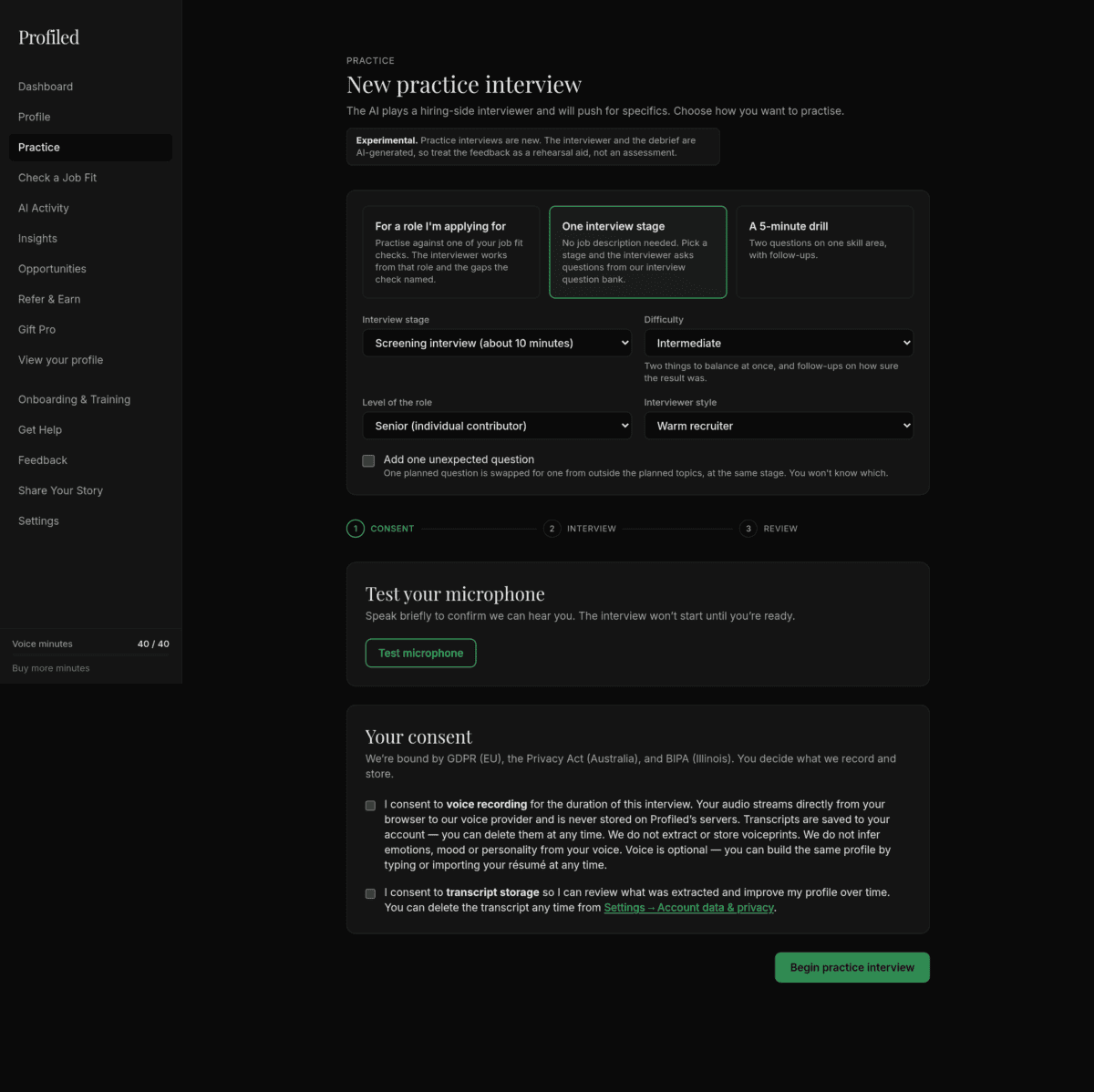
"Start practice interview" opens "New practice interview": "The AI plays a hiring-side interviewer and will push for specifics. Choose how you want to practise." Pick one of three cards:
| Card | What it says |
|---|---|
| "For a role I’m applying for" | "Practise against one of your job fit checks. The interviewer works from that role and the gaps the check named." |
| "One interview stage" | "No job description needed. Pick a stage and the interviewer asks questions from our interview question bank." |
| "A 5-minute drill" | "Two questions on one skill area, with follow-ups." |
Then make your choices:
- "Interview stage": "Screening interview", "Competency interview", "Deep-dive interview" or "Final-round interview". Each option shows its length beside its name; in a drill the lengths are left off.
- "Difficulty": "Foundation", "Intermediate", "Advanced" or "Expert". A line under the menu says what you will notice. At "Expert", for example: "After your first answer, the interviewer changes one fact and asks how your approach changes."
- "Level of the role": seven levels, from "Mid-level / Intermediate" to "Director / Vice President".
- "Interviewer style": "Time-pressed hiring manager", "Metrics-first finance lead", "Warm recruiter" or "Sceptical panel member". The style changes the tone and the kind of follow-up, not the questions.
- "Skill area": a drill only. If no skill area fits, the screen says "No skill area has enough questions for this stage, difficulty and level yet. Try another combination."
- "Add one unexpected question": "One planned question is swapped for one from outside the planned topics, at the same stage. You won’t know which." A drill shows "Drills have no unexpected question." instead.
The screen opens on "One interview stage": a "Screening interview" at "Intermediate" difficulty, for a "Senior (individual contributor)" role, with a "Warm recruiter" and no unexpected question.
If your balance can’t cover the stage you chose, the screen says so before anything is reserved: "Your balance is short, so this session would be about N minutes instead of M." Choose "Start the N-minute session" or "Choose something else". If a combination has too few questions, it says "There aren’t enough questions for this combination right now. Try a different stage, difficulty or level. No minutes were used."
The first card, "For a role I’m applying for", is covered in Practice for this role: a mock interview built from a job fit check (Pro).
Before every session: the consent step
Below the choices, every session starts with the same consent step, not only the first one. At the top, three numbered markers read "Consent", "Interview" and "Review".
First you’ll test your microphone — speak briefly to confirm you can be heard; a live level meter responds. Click "Test microphone" and allow the browser’s permission prompt. The button reads "Requesting…" and then "Mic ready". Then two consent choices:
- Voice recording. The product’s own commitment, word for word: "Your audio streams directly from your browser to our voice provider and is never stored on Profiled’s servers." Profiled also commits to three things about voice: no voiceprints are created, your voice is never used to identify you, and no AI is used to infer emotions from your voice.
- Transcript storage. The interview’s transcript is saved to your account, and you can delete it any time from Settings → Account data & privacy. How long are voice transcripts kept, and can I delete them? covers how long transcripts are kept.
Both boxes are required. "Begin practice interview" stays disabled until both are checked and the microphone test has passed, and it reads "Starting…" while the session starts.
Does Profiled store my voice, identify me by voice, or read emotions? covers the voice commitments in full.
The interview
During the interview, a status bar shows the connection state and a timer; your words appear in a live transcript, and the AI asks follow-ups to draw out depth. Click End interview when done.
The status bar reads "Connecting…", then "Live" ("Listening" while you speak), and "Wrapping up…" after you end. The interviewer speaks first.
The interviewer asks the questions planned for the stage, difficulty and level you chose, and follows up on your answers in the style you picked. To get a useful debrief:
- Answer out loud, in full. The debrief is written from what you said.
- Let it push. An uncomfortable follow-up is the session doing its job.
- Do not read from your profile. The point is to find out what you can say without it.
- Find somewhere quiet. Background noise degrades the transcript, and the debrief with it.
Practice-only questions. Some questions are for rehearsal only: practical topics such as "Compensation expectations", "Availability and notice" or "References and checks". The interviewer asks them like any other question, and nothing marks them during the interview. They are never graded or recorded as evidence. The saved debrief lists them separately, with a tip and, when available, pointers on your delivery.
When the interview ends: the debrief
The debrief starts generating as soon as the interview ends, under the heading "Your debrief". While it is written you see "Generating your debrief…" with an attempt counter. If it takes longer than expected, the panel says "Debrief is taking longer than expected. Try refreshing in a moment."
Once the debrief has started generating, you can leave the page: it appears in "Past debriefs" when it is ready.
The panel then shows a summary and three columns, "Strong", "Weak" and "Refine"; a session started from a fit check also gets "Readiness for this role". The saved debrief, which you open from "Past debriefs", adds "Question by question" and "Practice-only questions — not graded". Your practice debrief: readiness, question by question, and practice-only questions (Pro) explains every part, including what a withheld debrief means.
Three buttons sit under the debrief, and all three keep it. "Done" and "Cancel" return to the Practice page; "Practice again" returns to the start screen, with your choices kept, for a new session, which uses more minutes.
Practice for this role
A mock interview built from one of your job fit checks. On Pro, a check you have just run on Check a Job Fit ends with a "Next step" card whose button depends on the verdict, such as "Practice for this role". You can also choose "For a role I’m applying for" on the start screen and pick one of your recent checks. The interviewer works from the job description, your public profile and the gaps and strengths the check named, and the debrief adds a readiness read: "Ready", "Close" or "Not yet". Practice for this role: a mock interview built from a job fit check (Pro) covers it step by step.
Minutes: how the metering works
Practice sessions draw on your monthly voice minutes. The monthly amount for Pro is listed on the limits page. Pro earned through Refer & Earn has a smaller allowance, listed on the same page under "Pro from Refer & Earn rewards", and no top-ups. How do voice minutes work, and what happens when I run out? has the allowance for each kind of Pro and the steps for buying a top-up.
The details that prevent surprises:
- The start screen shows each stage’s length. A drill has a shorter planned length than any interview stage; the minutes charged depend on how long the session actually runs.
- No single session reserves more than the "Voice session length" on the limits page, for anyone, regardless of balance. Your monthly minutes are an allowance across sessions, not a session length. That ceiling is what a session sets aside, not a point at which the interview is ended for you.
- A session reserves its minutes up front. When you start a session, the full grant for that session (up to that ceiling) is deducted immediately. If you end early, the unused portion is returned automatically — but only after the session’s original time window has fully passed, so a very short session can show your balance down by the full grant for a little while. It comes back on its own within the same allowance period; returned minutes do not carry into the next period.
- Every session settles on the minutes it used, including one whose debrief is withheld.
- One live session at a time. Starting a second concurrent session is refused.
- What "month" means depends on your Pro flavor. On paid Pro it’s your billing period. On complimentary or reward-grant Pro it’s a rolling 30-day window.
- The sidebar voice minutes widget shows remaining/total. When you’re low, paid Pro sees the top-up option; a reward-grant Pro sees the upgrade path instead (top-ups aren’t available on reward-grant Pro).
- Top-up minutes don’t roll over. They’re valid for the period you buy them in: unused top-up minutes expire at the end of that period, and they lapse if your Pro subscription ends. Buy them when you’re about to use them, not in advance.
Two additions. On an annual plan the included minutes still renew every month, counted from your billing start date. The timer in the interview room does not stop you at the end of the reserved time, and minutes used beyond it are charged as well, so end the session yourself.
The widget’s states, and the steps for buying a top-up, are in How do voice minutes work, and what happens when I run out? The top-up size is on the limits page and the cost is on the pricing page.
Troubleshooting
- The microphone test fails — a message under the button names the cause: the browser blocked access, no microphone was found, or another app is using it. Allow mic access in your browser’s site settings, or fix the cause named, then rerun the mic test. If the cause can’t be identified the message reads "Could not access your microphone. Check browser permissions."
- "You already have a voice session open." — a session is still open in another tab. Close it, or wait a few minutes for it to time out, then try again. "You already have a voice session open", or the debrief keeps generating has more.
- Out of minutes — starting a session opens a window. On paid or complimentary Pro it is "Add voice minutes", which shows how many minutes you have used this period and offers a top-up (see the pricing page). Pro earned through Refer & Earn sees "Out of voice minutes" instead: it can’t top up, but the allowance refreshes with the rolling window.
- Balance looks too low right after a short session — that’s the up-front reservation described above; the unused minutes return automatically.
- Your history shows "Debrief withheld" or "No debrief" — open the row to see why there is no debrief for that session. The debrief guide linked above lists every state.
If something else goes wrong, use the support form.
Finishing
- You checked your remaining minutes in the sidebar widget, and the length of the stage you chose
- You chose how to practice: an interview stage, a drill, or a role you have checked
- Your microphone test shows "Mic ready" and both consent boxes are checked
- After the session, you opened the saved debrief from "Past debriefs" and made at least one profile edit from it
Related
- Your practice debrief: readiness, question by question, and practice-only questions (Pro)
- Practice for this role: a mock interview built from a job fit check (Pro)
- How do voice minutes work, and what happens when I run out?
Last verified: 2026-10-21