What this screen is
The profile assistant is a panel on the Profile page, between the status bar and the tab row. It shows your "Profile depth" and a button that reads "Fill it with help" until your profile can be published, then "Continue with help". The panel opens in place, above the tabs, and "Close" folds it away again.
The assistant asks about what your profile is missing, one topic at a time, and drafts the wording from your answers. You tick the drafts you want and press "Save". Nothing reaches your profile until you press Save, and only ticked drafts are saved.
Profile depth is a second percentage, separate from your quality score: how fully the deeper parts of your profile are filled in. It never decides whether you can publish.
Getting publish-ready with the assistant is included on every plan. The full interview beyond that is part of Pro. Open the assistant from "Profile" in the sidebar: the dashboard’s Profile Setup panel does not open it.
The opening
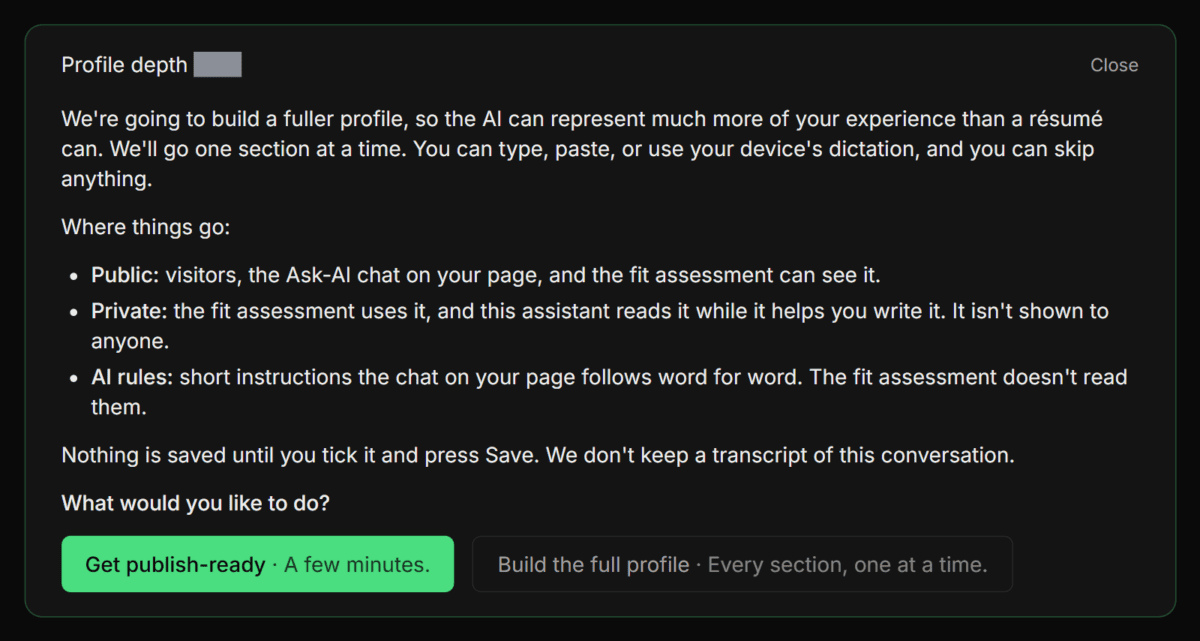
The first time you open the assistant, before you choose what to do, it explains itself:
"We’re going to build a fuller profile, so the AI can represent much more of your experience than a résumé can. We’ll go one section at a time. You can type, paste, or use your device’s dictation, and you can skip anything."
Then comes a short list headed "Where things go:", naming "Public", "Private" and "AI rules" with a line on who reads each, and the line "Nothing is saved until you tick it and press Save. We don’t keep a transcript of this conversation." Last is "What would you like to do?" and two choices.
| Choice | On screen | What it covers | Plan |
|---|---|---|---|
| "Get publish-ready" | "A few minutes." | The questions your publishing requirements still need. When you can publish, it stops | Every plan |
| "Build the full profile" | "Every section, one at a time." | Publishing first, then a plan for the private notes on your recent roles, then the rest of the profile, section by section | Pro |
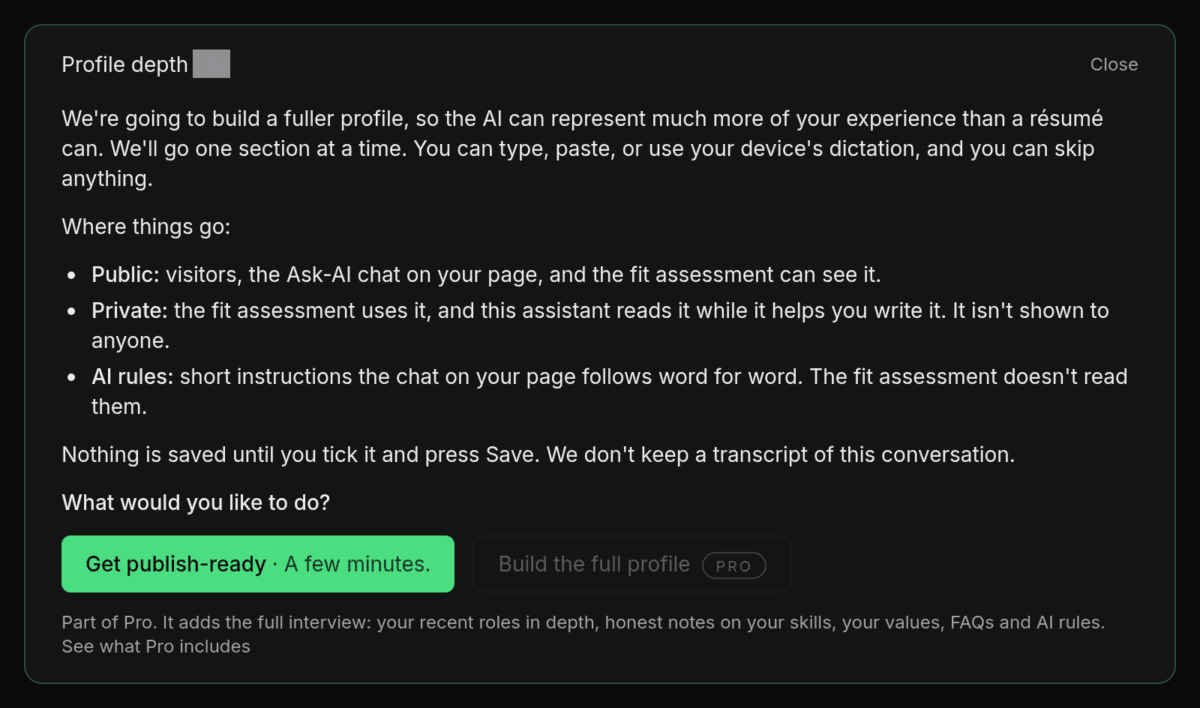
On Free, "Build the full profile" is shown but grayed out, with a "Pro" badge and the line "Part of Pro. It adds the full interview: your recent roles in depth, honest notes on your skills, your values, FAQs and AI rules." Beside it, "See what Pro includes" opens the pricing page. "Get publish-ready" works exactly as it does on Pro.
The opening shows until you choose. After that, the assistant opens on the next question.
A turn
Each turn is about one topic, a role, a section or a field, named at the top. A role reads as Company — Title.
Once per role, before the first private question about it, an amber note reads "These next questions are private notes about Company — Title. They don’t appear on your profile or in the chat; the fit assessment reads them. Answer any you like and skip the rest.", with the role’s own name. Private questions that are not about a role, such as your values, get the same note without a role name.
Then the question. When it asks two or three related questions in one turn, the assistant numbers them 1), 2), 3), one per line, and one answer can cover them all.
Below the question are the drafts the assistant wrote from your answer. Each draft has:
- a tick box. Only ticked drafts are saved
- its label (the field’s name in the Builder) and a badge: "Public", "Fit assessment only" (a private note) or "Steers Ask-AI chat" (an AI rule)
- "Before" ("Nothing yet" when the field is empty) and "After", what Save would write
- a "Changed:" line when the assistant changed your wording
- "Edit", which lets you change the After text ("Done" closes it). Once you edit it, the text is yours and the Changed: line goes
Fields elsewhere in your profile that the same answer covered appear under "Also drafted from your answer". Under the drafts are the answer box ("Type, paste, or use your device’s dictation.") with "Send", a count of ticked drafts, and "Save", which stays disabled until something is ticked. After a save you see "Saved" with the topic’s name, then "Next".
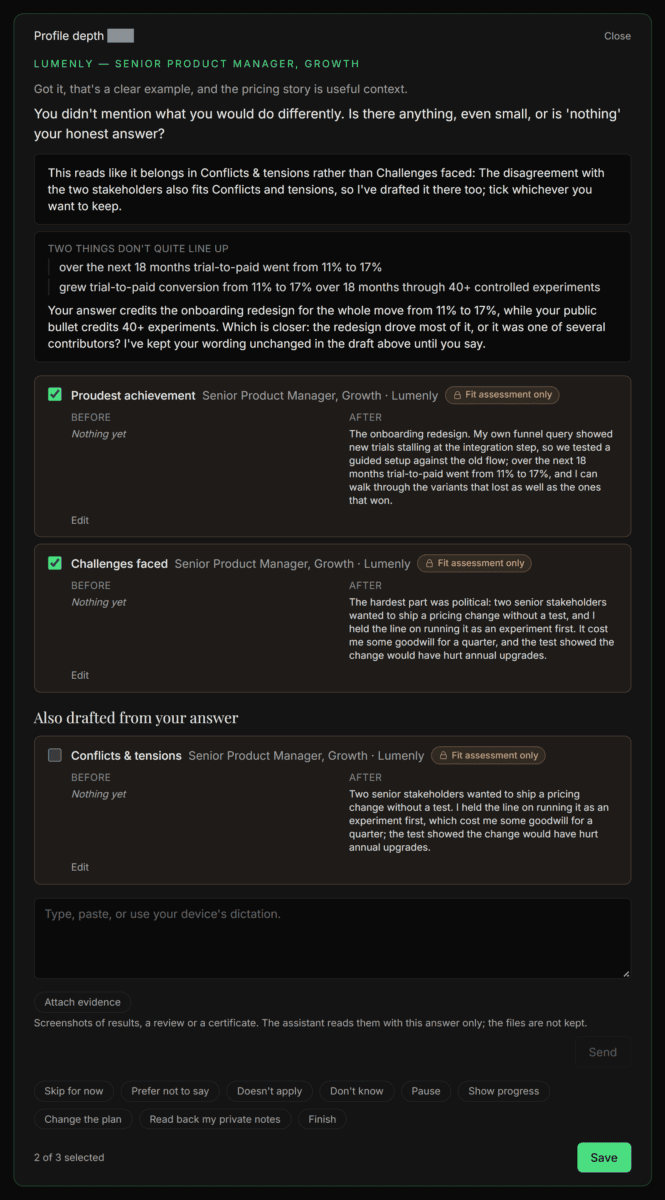
Nothing reaches your profile until you press Save, and only ticked drafts are saved. Some drafts arrive already ticked: your own words with only small tidy-ups, such as a typo fixed. Read them anyway, and untick anything you do not want.
Each topic gets a few follow-up questions at most. On the last one the answer box closes and the note reads "That’s the last question for this one. Tick what you’d like to keep and Save, or skip it for now."
Now and then a note sits above the drafts: "Two things don’t quite line up" when two places in your profile disagree, a suggested change to something already public ("Fix now", "Later"), or, for an answer about something personal such as health or family, "Use the fuller version", "Use the work-focused version" or "Leave it out".
The buttons under each question
| Button | When it shows | What it does |
|---|---|---|
| "Skip for now" | Always | Moves on. The question comes back later |
| "Prefer not to say" | Always | Settles the question. It is not asked again |
| "Doesn’t apply" | Questions about fields already in your profile, including grouped fields and a skill’s evidence (not questions that add a new item) | Opens a "Because:" row: "Current role", "No manager", "No reports", "Own business", "Not in the plan", "Other". The choice applies to every field in the question |
| "Don’t know" | Wherever "Doesn’t apply" shows | Settles every field in the question as unknown |
| "Back" | After a previous question in this session | Returns to the previous question |
| "Pause" | Always | Closes the panel. Open it again to carry on from the same question |
| "Show progress" | Always | Your progress so far |
| "Change the plan" | Pro only | Opens the plan step again |
| "Read back my private notes" | Always | Every private note in one place |
| "Finish" | Always | Your progress and three ways to finish |
You can also type what a button says, for example "skip for now" or "show progress", for every button except Back and Finish. Typing is ignored on a turn where you attach files, and if typing brings back drafts instead, use the button.
The plan step (Pro)
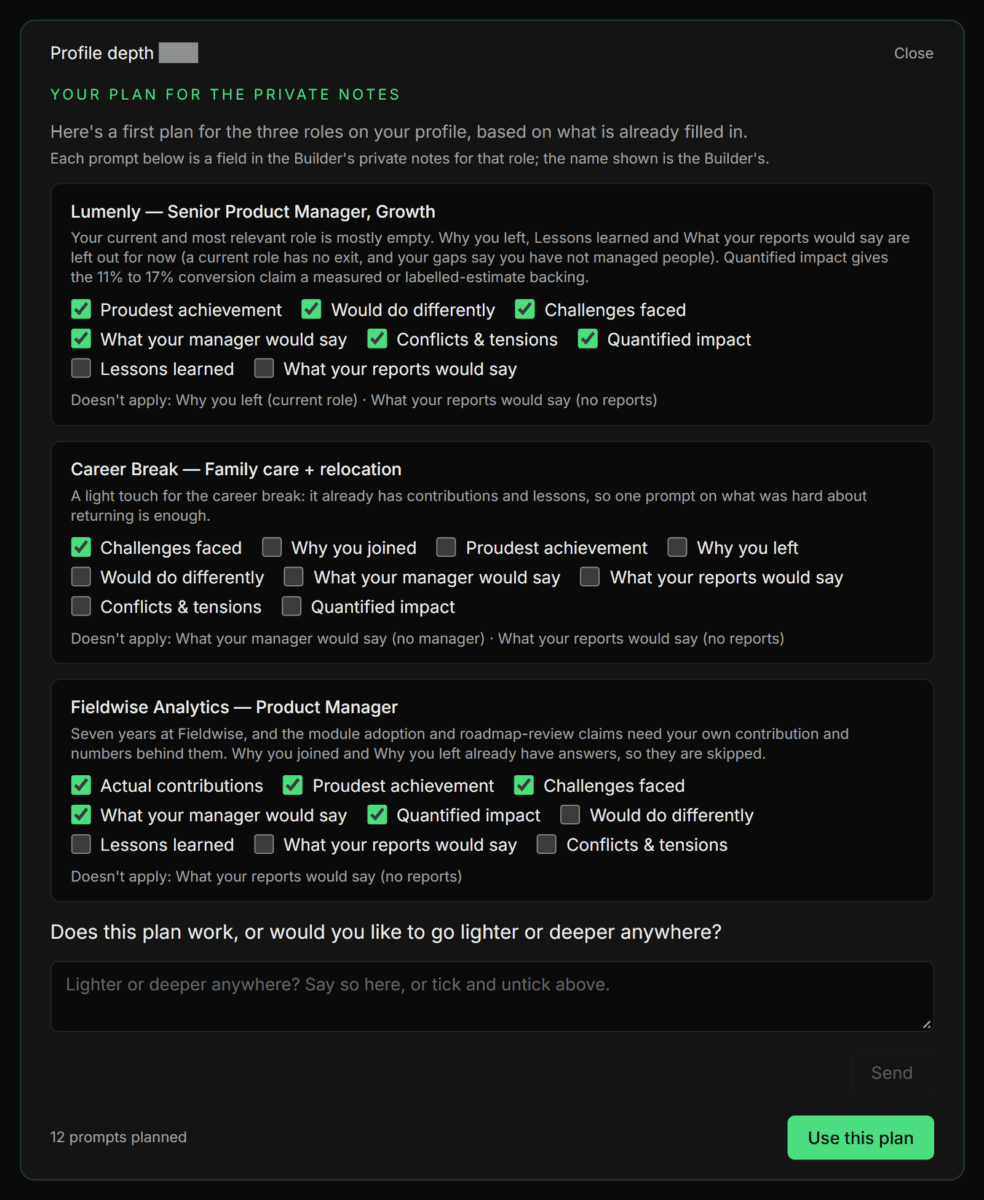
On "Build the full profile", once every publishing requirement is met and you have no plan yet, the assistant opens the plan step by itself. "Change the plan" brings it back at any time.
The step is headed "Your plan for the private notes". Each row is one of your three most recent complete roles, current role first, and lists that role’s private prompts that are still empty and not already answered "Prefer not to say", "Doesn’t apply" or "Don’t know", using the Builder’s names for them. "Why you left" appears only for a role that has ended. A role with nothing open reads "Nothing left to ask for this role."
The assistant’s picks start ticked. Tick and untick to choose, or type in the box ("Lighter or deeper anywhere? Say so here, or tick and untick above.") and the plan is adjusted. A box you tick by hand stays ticked when the assistant adjusts the plan.
"Use this plan" saves the plan, even with nothing ticked. After that, any publishing requirement that is still unmet is asked first, then the plan, role by role.
On its first turn only, the plan step may show at most one "Two things don’t quite line up" note, with the line "This step only sets the plan, so nothing you say here is saved. To change either note, edit it in the Builder."
On the full interview, if there are months between one role ending and the next starting, the assistant also asks about that gap once, headed "A gap in the timeline". Type what was there and press "Tell me", or choose "Nothing there", "Prefer not to say" or "Add a role on the Experience tab".
Role recaps (Pro)
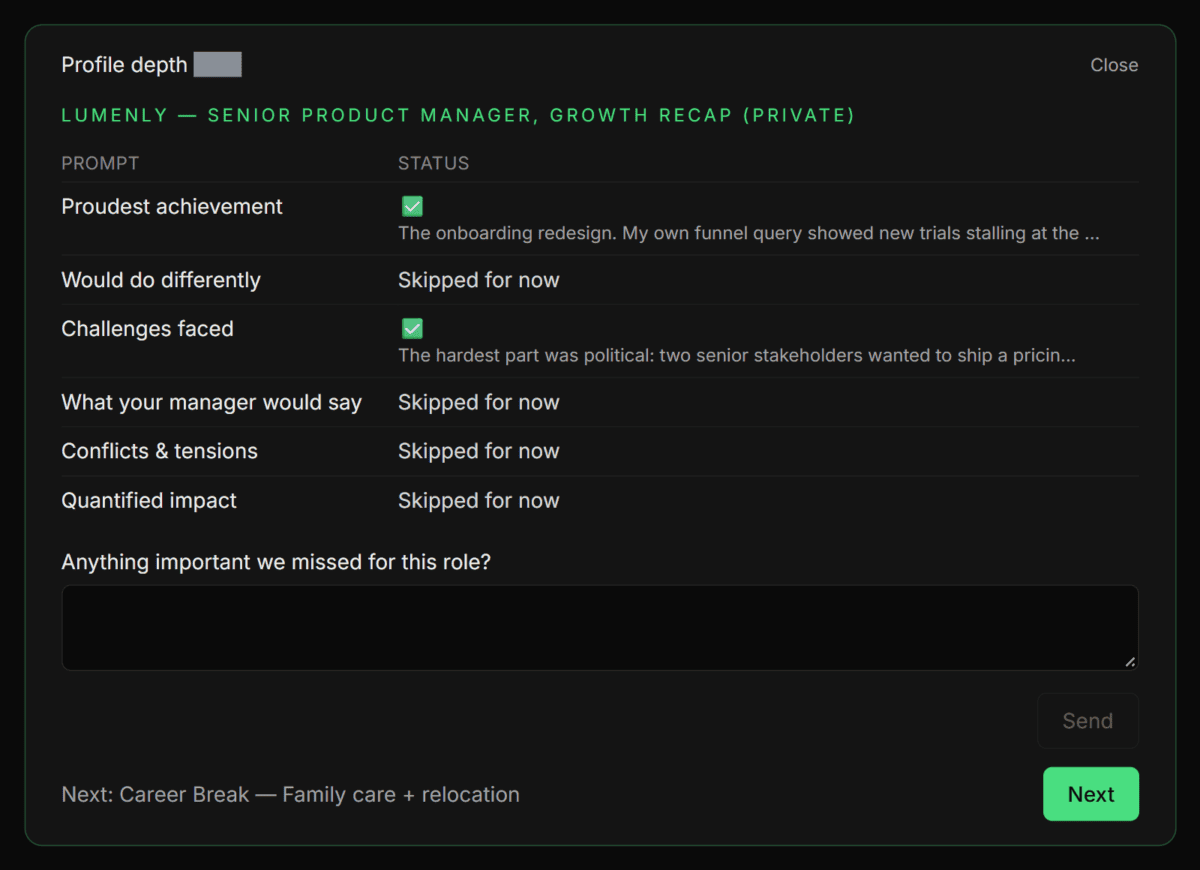
When every planned prompt on a role is settled and the next topic is a different role, the assistant shows a recap headed with the role and "recap (private)": a table of "Prompt" and "Status". A saved answer shows a tick, and the others show "Prefer not to say", "Doesn’t apply", "Don’t know", "Skipped for now" or "Open". When the role still has empty private fields outside your plan, "Anything important we missed for this role?" takes one more answer; otherwise there is no question. "Next" moves on to the topic named beside it.
Read back my private notes
"Read back my private notes" shows "Here’s everything private, in one place. Read it through once; anything you change opens that question again." The notes are grouped under each role, then "Skills, honestly" and "What I need and how I work", then "AI rules" and "What’s public", each label linking to its tab in the Builder. Below them come "Left out by your choice:", any "Open checks:" and "Your to-do list in the Builder:". With nothing private saved yet it reads "Nothing private saved yet." The read-back shows on your Profile page only.
Show progress and Finish
"Show progress" gives a short summary. On Pro it reads, for example, "You’ve saved 3 of 8 planned private answers. Still open: 5 in your plan, 1 skipped for now." On Free it names only what you skipped for now. Under it come your profile depth, any publishing requirement still unmet and the next topic.
"Finish" shows the same summary with three ways to finish:
| Option | Its line on screen |
|---|---|
| "Keep going" | "I’ll start with the quickest ones." |
| "Stop for today" | "Everything saved stays saved, and we’ll pick up here." |
| "That’s enough for now" | "Your profile stays exactly as it is." |
"Keep going" carries on with the next question. The other two close the panel, and what you saved stays saved.
Coming back
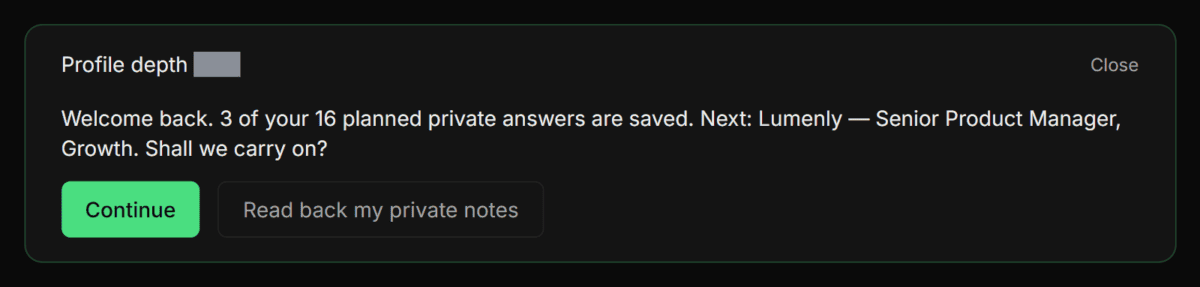
The assistant keeps your place between visits. When you open it again and you have saved a planned answer or left a topic open, it greets you with "Welcome back.", then what you have finished and, on Pro, how many of your planned private answers are saved, then "Next:" with the topic and "Shall we carry on?". "Continue" carries on from there, and "Read back my private notes" shows your private notes first.
Attaching evidence (Pro)
On Pro, while uploads are on, "Attach evidence" sits under the answer box, with the hint "Screenshots of results, a review or a certificate. The assistant reads them with this answer only; the files are not kept." It takes PNG, JPEG or WebP images, or a PDF. The files go with the answer you type, so "Send" needs a written answer. The control is not offered on the plan step, and Free never sees it.
What the assistant read appears under "Read from your files", each figure or credential with its source and period, and drafts that use it are marked "From your files". The files themselves are not kept: the Privacy Policy sets this out in section 5, "AI data practices". If a file cannot be used, the message under the box says why, and the ones about how many files or how large they are link to the limits page.
Free and Pro
| What | Plan |
|---|---|
| "Get publish-ready": the questions publishing still needs | Every plan |
| "Read back my private notes", "Show progress" and "Finish" | Every plan |
| "Build the full profile": the full interview | Pro |
| The plan step and "Change the plan" | Pro |
| Questions about gaps in your timeline, and role recaps | Pro |
| "Attach evidence" (while uploads are on) | Pro |
The turn limit is the same on every plan. Complimentary Pro and Pro earned through Refer & Earn count as Pro here. If Pro ends, the assistant stops at publish-ready.
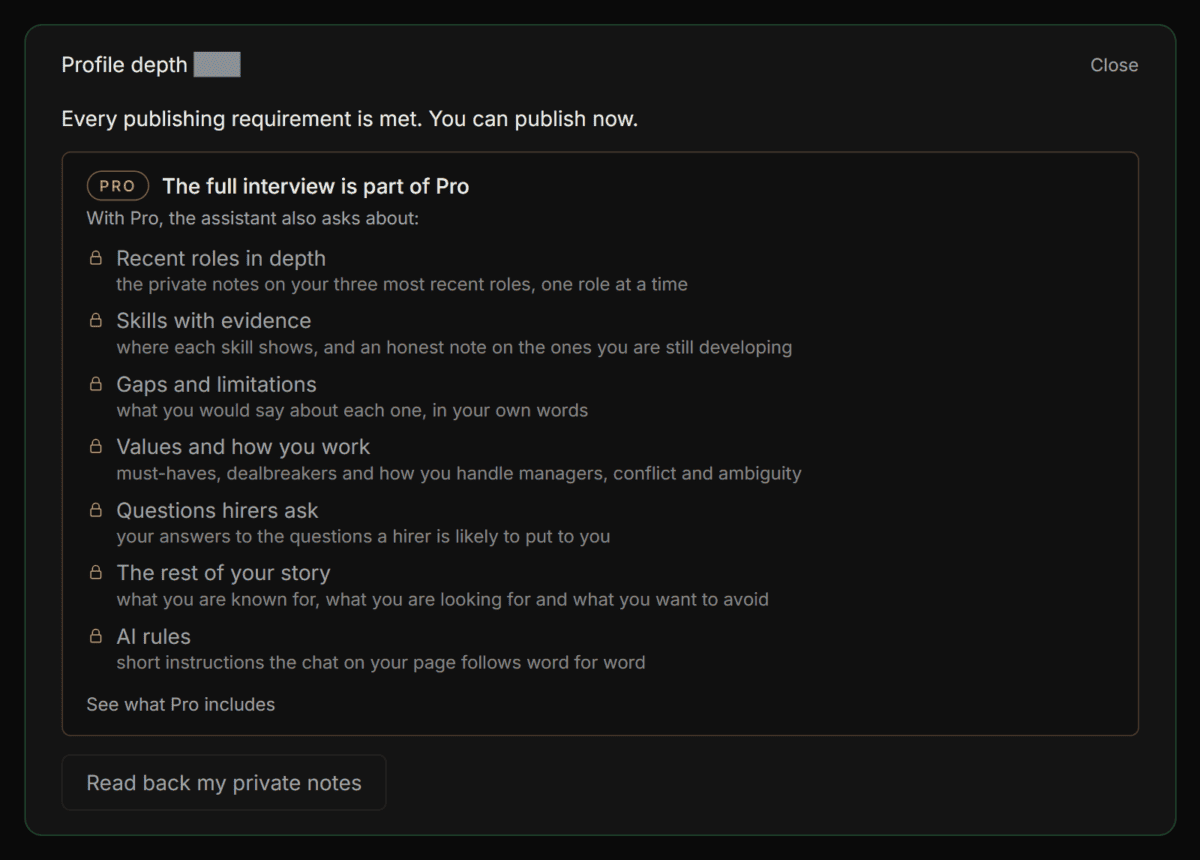
When a Free account reaches publish-ready, the panel reads "Every publishing requirement is met. You can publish now." Below it is a box with a "Pro" badge, headed "The full interview is part of Pro", then "With Pro, the assistant also asks about:" and a locked list of the areas where your profile still has depth to earn, each with what the full interview asks there. The list can name "Recent roles in depth", "Earlier roles", "Skills with evidence", "Gaps and limitations", "Values and how you work", "Questions hirers ask", "The rest of your story" and "AI rules", but only the ones you have not yet earned appear. The box ends with "See what Pro includes", and a "Read back my private notes" button sits under it. There is no "Build the full profile" button on the Free panel.
The other endings:
- If you chose "Prefer not to say" for something publishing needs, the assistant stops asking and names it: "Publishing still needs:", the requirement, and "You can add it in the Builder."
- On Pro, after "Get publish-ready": "Every publishing requirement is met. You can publish now, or build the full profile.", with a "Build the full profile" button.
- On Pro, after the full interview: "Nothing left to ask for now."
Limits and messages
The assistant’s limits, how many turns you can take in any 24 hours and how many evidence files you can attach, are on the limits page.
| Message | What it means | What to do |
|---|---|---|
| "You’ve reached today’s limit for the assistant. See Limits." | You have used the assistant’s turns for now | Come back later. Your place is kept |
| "A file you uploaded is waiting for review. Review it first, then come back." | A résumé or profile document you uploaded has not been applied or discarded | Use "Review it" to finish that review first. See Importing a résumé or profile document |
| "Building the full profile is part of Pro." or "Attaching evidence is part of Pro." | Your account is on Free | See pricing |
| "Your profile changed since this was drafted, so nothing was saved. Reload the page and try again." | Your profile was edited after the draft was made | Reload, then answer again |
What the assistant reads and keeps
Your private context is used by the Honest Fit Assessment. The profile assistant also reads it while it helps you write it, and shows it only to you. Visitors and recruiters never see it, and the Ask-AI chat on your profile never receives it.
No transcript of the conversation is kept: what you tick and save is what reaches your profile. Attached files are read with that answer and not kept. What each step sends to Profiled’s AI provider is set out in the Privacy Policy, section 5, "AI data practices", and the AI Disclosure Statement covers your private context.
Finishing
- You chose "Get publish-ready", or on Pro "Build the full profile"
- You read every draft before saving, including the ones that arrived ticked
- You used "Skip for now" or "Prefer not to say" rather than inventing an answer
- On Pro, you set a plan for the private notes on your recent roles
- You opened "Read back my private notes" once and checked it
- The button now reads "Continue with help", so your profile can be published
Related
- Profile Setup: the dashboard panel that gets you to publish
- Importing a résumé or profile document: upload, review, apply
- What Do The 11 Private Experience Fields Do, and Who Sees Them?
Last verified: 2026-10-21